Top 12 video training software solutions for L&D in 2026
Key Takeaways
- Video training platforms help L&D teams create engaging content at scale, measure ROI, and unify scattered tools into one system.
- Enterprise training solutions like Docebo support multi-audience training with AI-powered video creation, while tools like Camtasia specialize in screen recording and editing.
- Great training videos start with strong planning: storyboards, clear audio and visuals, and short modules under seven minutes.
- Must-have features include screen recording, system audio capture, AI-generated captions/translations, LMS integration, and analytics that track engagement.
- Organizations like KCF Technologies saved $1.5M while boosting employee engagement by leveraging a video training platform like Docebo.
Introduction
In a world where attention is scarce, video has become one of the most powerful ways to pull people in, keep them focused, and actually help knowledge stick. But not all video tools are built the same.
Some platforms help you make videos. Think screen recordings, edits, effects. Great for creation, but they stop there.
Video training platforms like Docebo help you deliver learning at scale, while also:
- Supporting multi-audience training,
- Automating workflows,
- Tracking learner engagement with powerful analytics
- Helping you manage compliance, and
- Tying everything back to business impact.
Plus, video training platforms also integrate efficiently with other video solutions so you get the best of both worlds. That’s why choosing the right one matters. But how do you know which one is the best one?
To help you choose, we’ve rounded up the top video training platforms on the market. Here’s a sneak peek, but read on to learn more about them.
Why video training matters for L&D
Did you know 83% of people prefer video over other formats for learning? It makes sense. Video is simply easier to absorb. It mirrors how we naturally learn: By watching, observing, and connecting information to real-world context.
But the value of video goes way beyond preference. In L&D, video solves several challenges at once:
- It speeds up understanding. A process that takes a full page of text to explain can often be shown in 20 seconds.
- It creates consistency. Every learner sees the same message, the same demo, and the same standard, no matter who’s delivering training.
- It supports different learning environments. Hybrid teams, frontline workers, and global audiences all benefit from a format that can be accessed anytime, anywhere.
- It boosts retention. When learners can see something happen, they’re far more likely to remember how to do it themselves.
In short, it’s not so much that video is a popular option, but that it’s a very practical one. It helps L&D teams scale training, reduce rework, and deliver learning that actually sticks.
Now let’s go over some platforms with which you can make videos, and some others with which you can not only make videos but also deliver learning.
Top 12 video training platforms for L&D
| Company | Best for | Not ideal for |
| Docebo | Enterprise-scale, AI-powered video content creation | Organizations looking only for simple video editing or creation tools without LMS capabilities |
| Loom | Quick, lightweight screen recordings for async communication and fast knowledge sharing | Formal training, multi-audience learning, compliance reporting, or enterprise-level analytics |
| Synthesia | AI-powered video creation without cameras or actors | Organizations that need complex editing, interactive elements, or integrated training delivery/analytics |
| Camtasia | Screen recording and video editing for instructional content | Scalable delivery, hosting, learner tracking, or enterprise learning workflows |
| Vimeo | High-quality video hosting and training for external customers | Comprehensive L&D management, SCORM support, or deep learning analytics |
| LearnWorlds | All-in-one platform for creating and selling online courses | Enterprise internal training, compliance-heavy environments, or large multi-audience training programs |
| ScreenPal | Simple, affordable screen recording and basic video editing for teams needing fast how-to content | Enterprise-grade distribution, robust analytics, or AI-powered content creation |
| iSpring Suite | PowerPoint-based authoring for rapid e-learning development | Advanced, cinematic video production or large-scale content hosting/delivery |
| Vyond | Creating animated videos for engaging training and marketing | Realistic video capture, screen recording, or integrated LMS delivery |
| Final Cut Pro | Professional-grade video editing for Mac users. | Beginners or L&D teams needing quick, template-based video creation or analytics |
| Adobe Premiere | Industry-standard professional video editing. | Non-technical users or teams that need simple, rapid content creation and training deployment |
| Powtoon | Fun, animated, template-driven videos for explainer content, onboarding, and internal comms | Creating traditional instructional videos, screen recordings, or delivering/trackable training |
1. Docebo
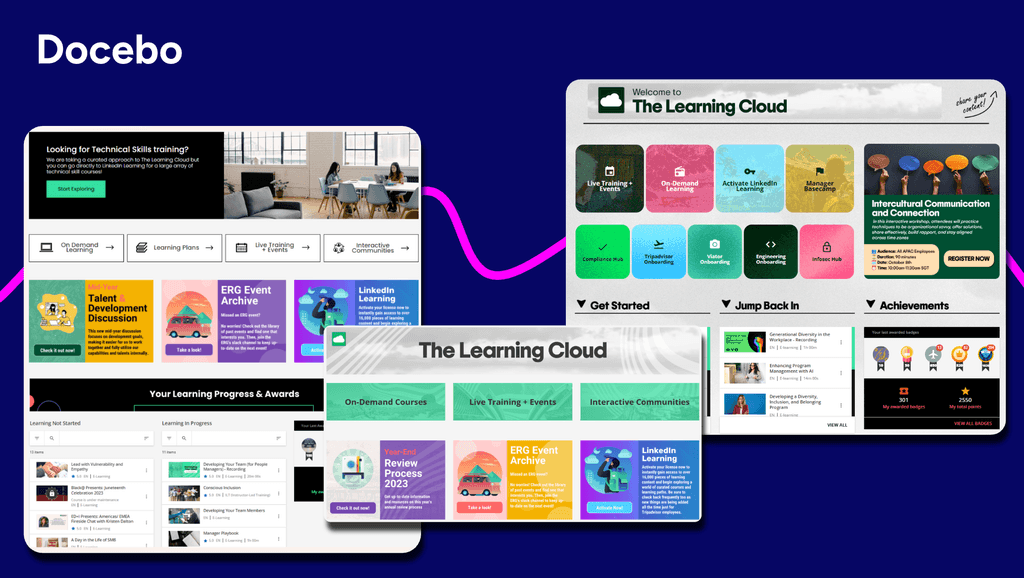
Best for: Enterprises looking for a learning platform with content generation capabilities that include video
About Docebo
Docebo is an industry-leading LMS that specializes in video-enabled training for employees, customers, and partners. This learning platform combines AI-powered content creation with deep analytics to deliver personalized, scalable learning experiences across global organizations.
Key features:
- AI-powered content authoring for creating training videos
- AI avatars for video creation
- Extended enterprise capabilities supporting multi-audience video training delivery
- Deep analytics and reporting to measure video training effectiveness and ROI
- Seamless integrations with business tools including Salesforce, MS Teams, and Slack
- Automated enrollment and personalized learning paths for streamlined video training
- Integrations with video making software like Loom and Synthesia
| What people like | What people don’t |
| “The new feature AI Creator and AI Video Presenter helps in speeding up the content creation. The new UI interface helps in navigating faster, making training more effective and engaging.” — Harshani A. “Creating and managing content is smooth, especially with built-in authoring.” — Vishal D. | “Docebo can feel quite complex when setting up for small teams which requires basic training tools.” — Srivathsav M. |
2. Loom
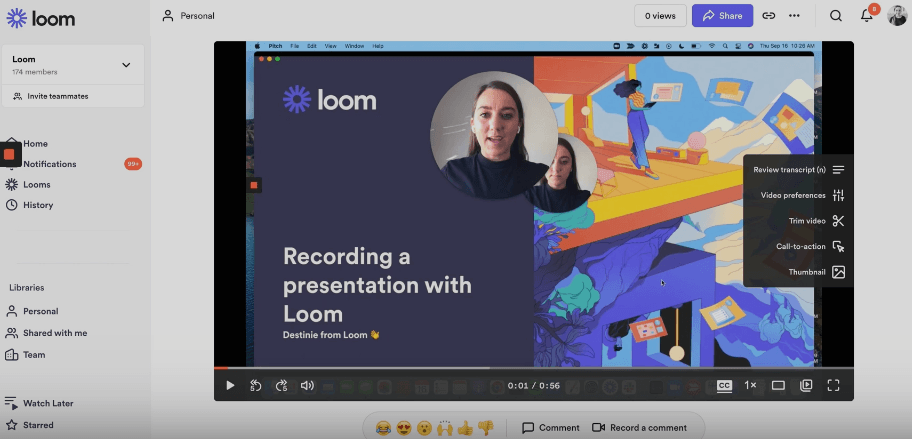
Best for: Organizations looking for a good screen capture and simple video-making platform
About Loom
Loom is a screen recording and video messaging platform that enables users to quickly capture their screen, camera, or both to create training videos. The tool focuses on simplicity and speed, allowing anyone to record and share instructional content without technical expertise.
Key Features:
- One-click screen recording with browser extension and desktop app options
- Drawing tools and cursor emphasis features for enhanced visual communication
- Basic analytics to track viewer engagement and video performance
- Instant sharing capabilities with automatic link generation
- Simple editing tools for trimming and basic video adjustments
| What people like | What people don’t |
| “Loom excels through its effortless asynchronous communication, allowing complex ideas to be conveyed with remarkable clarity. Its intuitive recording experience transforms explanations into vivid, easily digestible visual narratives.” — Ankita N. “I love the AI features of Loom, which save me an incredible amount of work by allowing me to make the video content available in written form as well.” — Marcel G. | “I dislike the limit on recording time with Loom. It can be restrictive for creating comprehensive guides or tutorials, and I think the allowed recording duration should be extended to better accommodate longer content.” — Lisa W. “I wish Loom offered more editing power, such as more advanced options for video editing and the ability to change lighting, to make recordings appear more professional.” — Mark O. |
3. Synthesia
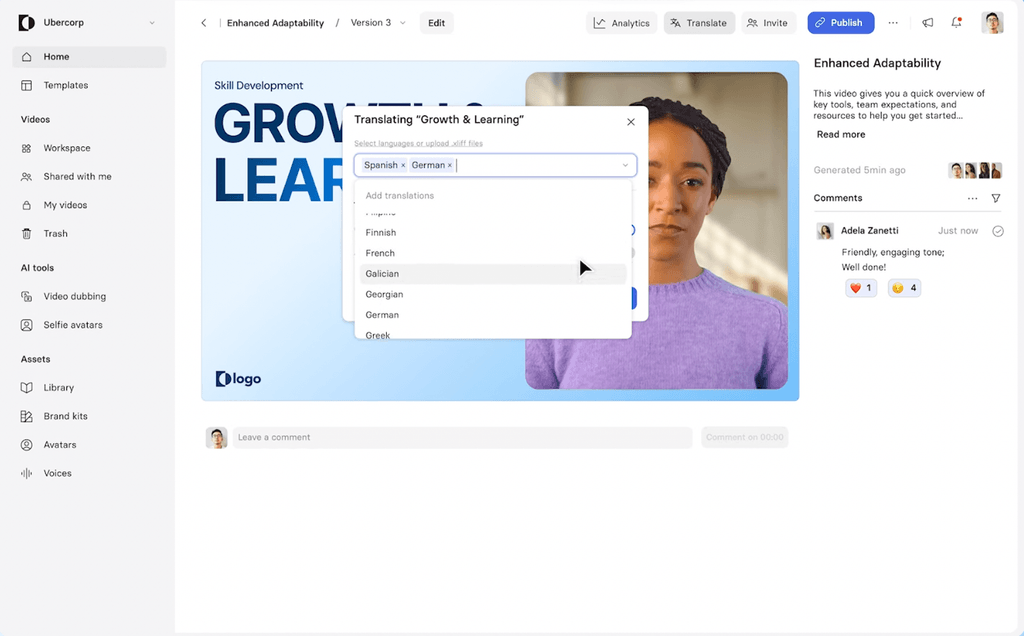
Best for: Businesses looking for a quick video-making solution that doesn’t require on-screen talent, cameras or studios
About Synthesia
Synthesia is an AI video-creation platform that swaps traditional filming for text-to-video technology. Type your script, pick an avatar (or clone your own), choose a voice, and export a branded video ready for any LMS or intranet.
Key features
- 240+ stock avatars with realistic lip-sync
- Text-to-speech in 140+ languages
- Built-in templates, screen-recording, and simple timeline editing
- One-click subtitles and translations for global rollouts
- Analytics to track views, watch time, and engagement
| What people like | What people don’t |
| “I really appreciate how Synthesia offers the ability to create quick and easy videos with avatars simply by writing scripts, which saves both time and money.” — Rob C. “I appreciate the intuitive nature of Synthesia and how it is very user-friendly, making the process of creating realistic videos remarkably straightforward.” — James V. | “I struggle with Synthesia’s pronunciation features. While they are working on enhanced pronunciation options, I find it challenging to type out words phonetically to achieve the correct pronunciation I need.” — Amy M. “I think Synthesia could be improved by offering more capabilities for animation and additional options for design-focused features. Currently, I sometimes have to use After Effects for certain animations or features that are too complex for Synthesia.” — Kevin R. |
4. Camtasia
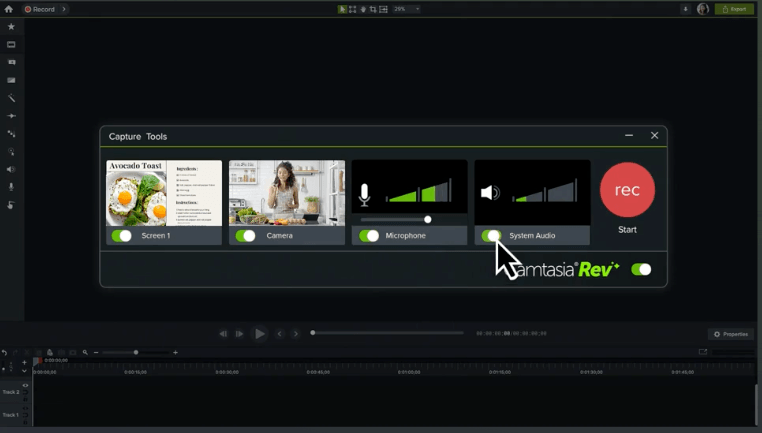
Best for: Companies seeking a screen recording app with broad editing capabilities
About Camtasia
Camtasia is an all-in-one, easy-to-use tool for recording, editing, and enhancing instructional videos with special effects.
Key features
- Easy drag-and-drop editing functionality
- Screen recording with separate audio, screen, and video tracks
- Custom cursor effects to remove distractions
- AI voice generator for narration
- AI script generation to create, re-write and localize content in minutes
| What people like | What people don’t |
| “Camtasia features an intuitive and beginner-friendly interface, making screen recording and video editing straightforward, even for those without technical experience.” — Vishal D. “It is user friendly and very intuitive, without losing the major features needed to edit videos.” — Edson M. | “Within the segment of a simplified video editing tool, it is still limited and definitely not ideal for bigger projects.” — Joana M. “It consumes a lot of resources and is actually very limited compared to other editing brands.” — Gibs S. |
5. Vimeo
Best for: High-quality video hosting and training for external customers
About Vimeo
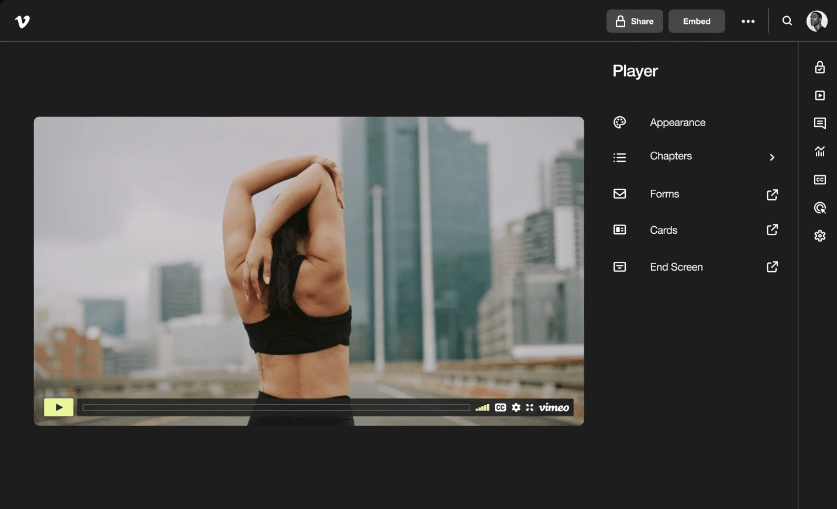
Vimeo is a professional video hosting platform offering ad-free playback, custom branding, and collaboration tools for teams that need to share training content.
Key Features:
- Video player and video hosting options
- Screen recording from your browser
- Customizable player and brand elements
- AI script generation and teleprompter
- Browser-based editing with drag-and-drop functionality
- Can resize videos to change aspect ratio
| What people like | What people don’t |
| “I’m able to track analytics and it also serves as our backup for all the videos we created.” — Karen L. “We’ve used Vimeo for a number of years now and still love it, even with a pretty hefty stack of other digital tools and platforms.” — Morgan M. | “The slow loading times that videos shows, and the fact that its service is banned in some countries.” — Paul B. “I wish I had more storage space, and that bulk edits were possible.” — Jessica C. |
6. LearnWorlds
Best for: Creating and selling online courses
About LearnWorlds
LearnWorlds is an LMS that focuses on creating and selling online courses through video. The platform provides white-labeling options, allowing organizations to deliver branded learning.
Key Features:
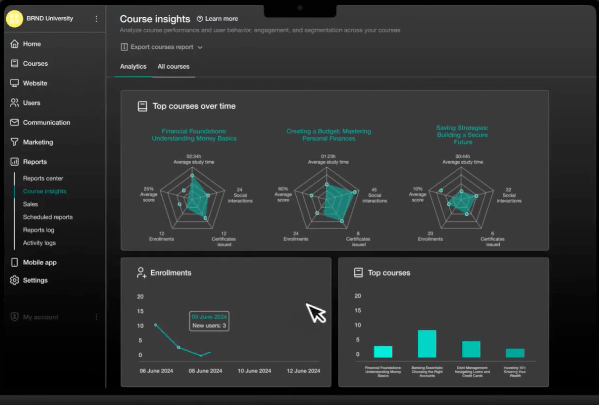
- Interactive video player with AI-generated table of contents, summary, subtitles, transcripts, and translations
- Video analytics with reports detailing plays, rewatches, drop-offs, and interactions
- Assessment capabilities integrated directly with video content
- e-Commerce functionality for monetizing training courses
- White-labeling options for branded learning experiences
| What people like | What people don’t |
| “LearnWorlds beneficial features: 1) Ease of importing & integrating data into organized sections and activities2) The option to Use & incorporate YouTube videos3) Ease to setup a course4) Support how to videos and how to step by step site. Great resource! 5) Template examples for course pages & ease to edit the templates & assign to courses.” — Katherine G. “LearnWorlds is designed for today’s education teams who need to build and iterate on content rapidly without needing to engage in prolonged development processes that result in SCORM files.” — Alexander A. | “Wish there were additional incentives or badges relating to course completion as opposed to just community discussions.” — Brittnie W. “No meeting scheduling links, a lot of integrations needed which raises user expenses and inability to add users as needed without going to the enterprise level for additional schools.” — Dr. Michelle B. |
7. ScreenPal
Best for: Simple, affordable screen recording and basic video editing for teams needing fast how-to content
About ScreenPal
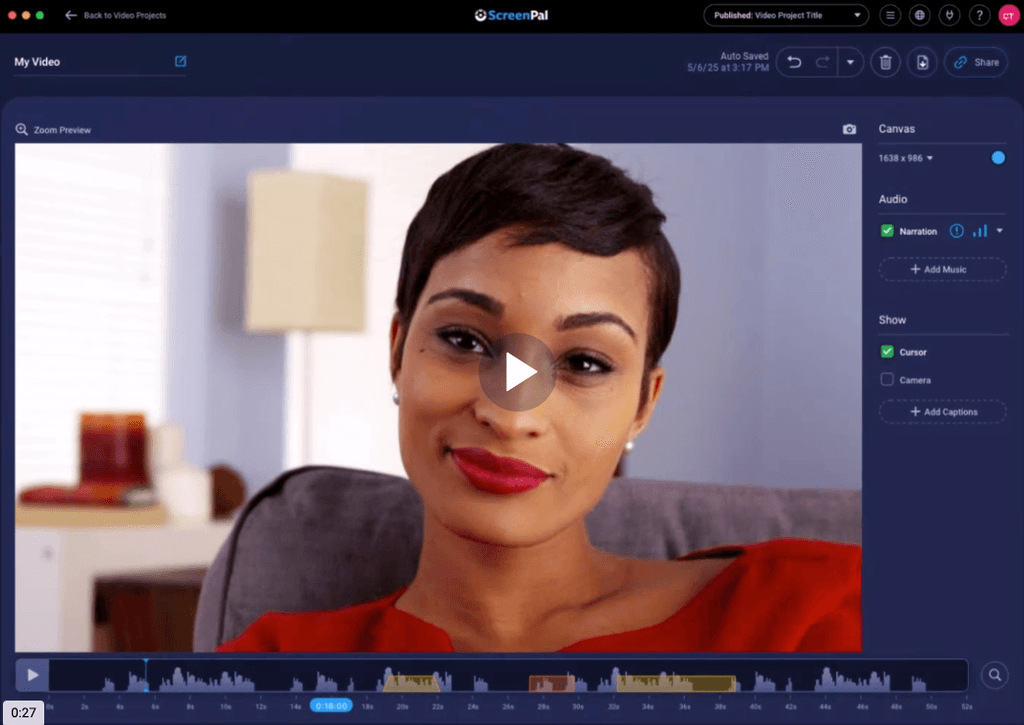
ScreenPal is a user-friendly screen capture and video editing platform designed for creating training videos and instructional content. The software provides tools for recording, editing, and sharing video content that do not require advanced technical expertise.
Key Features:
- Basic editing capabilities with stock media library integration
- Built-in hosting and sharing options for distribution
- Screen recording and screenshots to annotate your screen
- Drag-and-drop storyboard and script creation and importing
- Video and image editing and embedding video quizzes
- Video analytics to track engagement
| What people like | What people don’t |
| “The most impressive thing about that is just the sheer variety of things it can do without ever having to leave the app.” — Vincent F. “The software is extremely easy to use and it doesn’t require much in the way of computer resources.” — Mark J. | “The learning curve can be steep for a novice.“ — Cecelia G. “When trying to record my screen to showcase a website, that requires scrolling down their website page, it can be jittery at times, so needs to be recorded a few times before the recording looks smooth.” — Ollie N. |
8. iSpring Suite
Best for: PowerPoint-based authoring for rapid e-learning development
About iSpring Suite
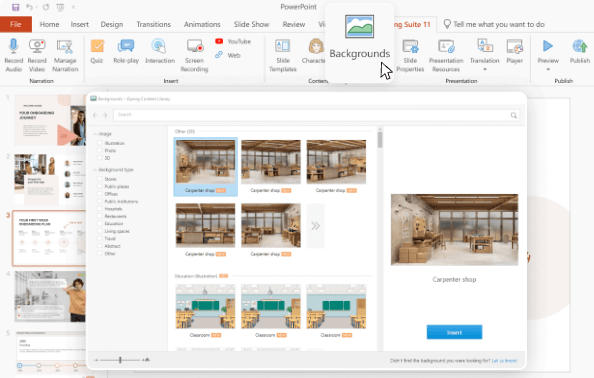
iSpring Suite is a PowerPoint-based authoring toolkit that lets you turn familiar slides into interactive, video courses. If your team already lives in Microsoft Office, you can keep the workflow you know while adding screen recordings, video lectures, quizzes, and dialogue simulations.
Key Features:
- Deep PowerPoint integration for a seamless authoring workflow
- Screen recording right from PowerPoint
- Interactive quizzes and knowledge checks
- Avatar choices for presenters
- SCORM, xAPI, and AICC export for easy LMS upload
| What people like | What people don’t |
| “The best thing about iSpring Suite is that it provides you with templates and tools that can so easily be customized to your needs.” — Julie W. “I love that iSpring Suite offers me the ability to quickly edit and modify training programs, which is essential for keeping up with industry changes and effortlessly adding new classes. The flexibility to provide training in multiple languages, including Spanish and accommodations for more diverse dialects, is fantastic” — Sonya S. | “I am unhappy that iSpring Suite does not have a full version compatible with MacBooks used in our organization. This limitation is inconvenient as it restricts our ability to utilize the software across all devices and teams effectively.” — Guillaume V. “Although the PowerPoint foundation is a definite advantage, it does limit design flexibility when compared to e-learning tools that are purpose-built for interactivity.” — Richard N. |
9. Vyond
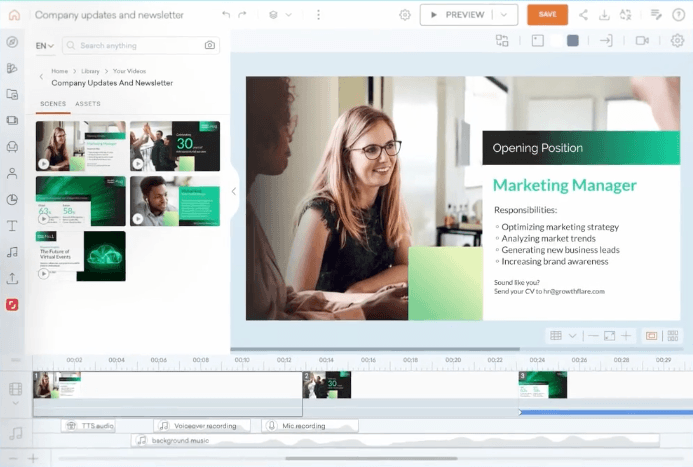
Best for: Creating animated videos for engaging training and marketing
About Vyond
Vyond is a cloud-based animation platform that lets you drag, drop, and customize characters, props, and scenes to create engaging videos for compliance, soft-skills, and process training.
Key Features:
- AI-driven text-to-video generation
- 1,100+ AI avatars to choose from for presenters
- AI-driven video-to-action feature that lets you upload videos of specific movements to turn into an animation
- Automatic background removal
- AI translations into more than 80 languages
| What people like | What people don’t |
| “Once you set a backdrop for a video, you can actually save it as a template and use it next time. This is helpful when I create videos that should reflect the Brand.” — Tuli D. “Its simple but can also be as complicated as you want it, you can customise or commit with pre made graphics/characters/props.” — Emily G. | “Some things aren’t searchable, like in character creator, there needs to be a search feature for clothes and accessories. I also dislike that I can’t import my Adobe Illustrator or Photoshop files (with layers) directly into the program.” — Colin B. “I find that creating longer videos (2 minutes or more) can become tedious. It can be taxing, so I keep my videos about 1 to 1.5 minutes. However, the tools is best used for shorter videos, I think.” — Adeesha H. |
10. Final Cut Pro
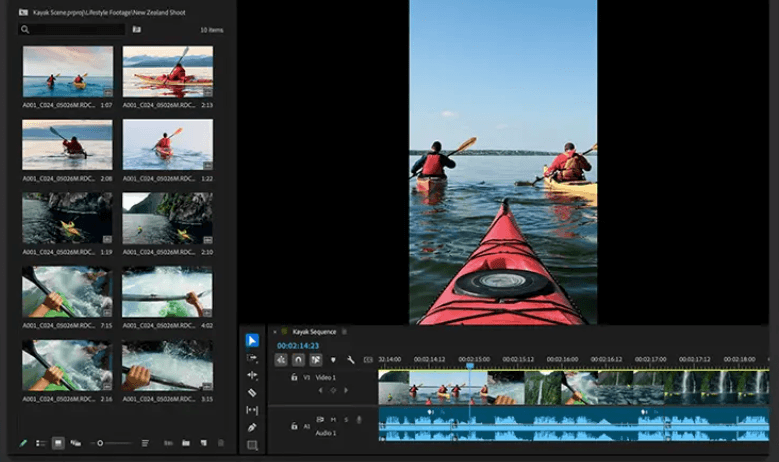
Best for: Professional-grade video editing for Mac users.
About Final Cut Pro
Apple’s flagship editor is built exclusively for macOS. If your team is all-in on Mac and you need cinematic polish for onboarding or product walk-throughs, Final Cut Pro is your tool. However, it doesn’t handle video hosting or LMS hand-offs out of the box, and the interface can feel daunting when you’re coming from iMovie or Camtasia.
Key Features:
- Compound clip feature to bundle separate video and audio clips into movable packages
- Synchronized clip feature that aligns video to second-source audio automatically
- Magnetic mask feature allows you to isolate people and objects from backgrounds
- AI caption transcription functionality
- Drag-and-drop editing and special effects capabilities
| What people like | What people don’t |
| “The interface is very clean, modern, and more intuitive than other editors; this helps a lot in daily work. I particularly love the magnetic timeline which simplifies some steps during editing; the workflow is always smooth.” — Gabriele G. “It has multiple editing features such as cropping and text animations for editing our videos. It works very smoothly on all of our Macbooks and iPads. It supports all of our video formats. It has many built in collections of music and transitions for our videos.” — Shiv K. | “Steeper learning curve if you’re new to pro editing” — Eric G. “For me, the rendering that occurs in the background can be weighty on my system. I choose to disable the feature in order to have my system perform better with speed.” — V. K. |
11. Adobe Premiere
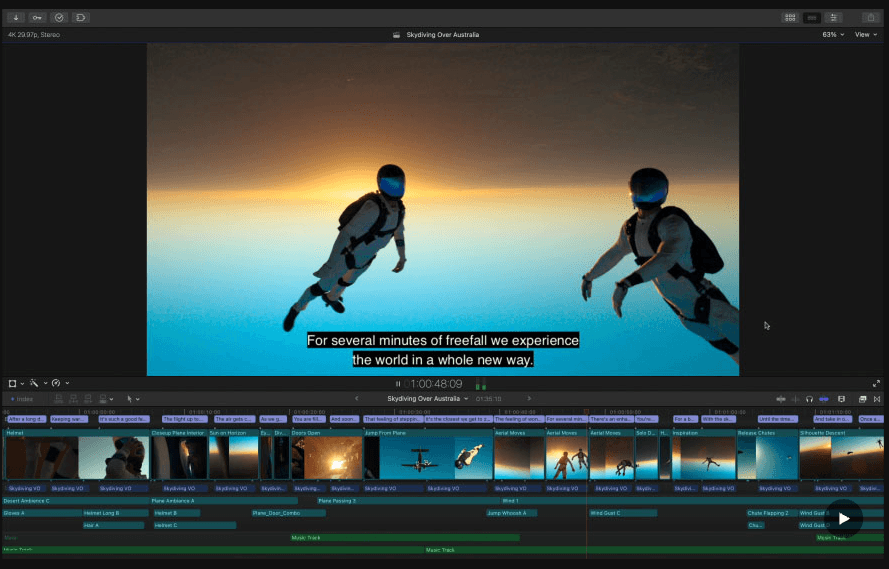
Best for: Industry-standard professional video editing.
About Adobe Premiere
Premiere is a professional editing suite trusted by filmmakers, content creators, and L&D pros alike. From fine-grained cuts to color grading and motion graphics, you get the tools you need to turn raw footage into polished learning experiences.
Key Features:
- AI-driven text-based editing to easily refine, reorder and trim clips
- Audio polishing to clean up dialogue, sync tracks, and auto-fit music tracks
- AI transcript and caption generation
- Object mask for isolating objects and people
- Full Creative Cloud ecosystem integration including Adobe After Effects for motion graphics
| What people like | What people don’t |
| “What I love most is how Premiere Pro makes my videos feel expensive. I can churn out truly professional, cinematic footage every time.” — Karen L. “Premiere allows you to make professional tweaks to audio and video that give you a polished project at the end. It has a lot of features that allow you to personalize your brand and really create video projects that stand out. I love how I can create elements in other Adobe programs and easily use the in Premiere.” — Pamela J. | “Over the years it has become increasingly powerful and resource-intensive, making it complex and hardware demanding. Not suitable for amateurs.” — Jacopo Z. “To run some of the Adobe Creative Cloud programmes effectively—especially resource-intensive apps like Premiere Pro, After Effects, or Photoshop—you’ll need a good laptop or PC with sufficient processing power, memory, and graphics capability.” — Brad M. |
12. Powtoon
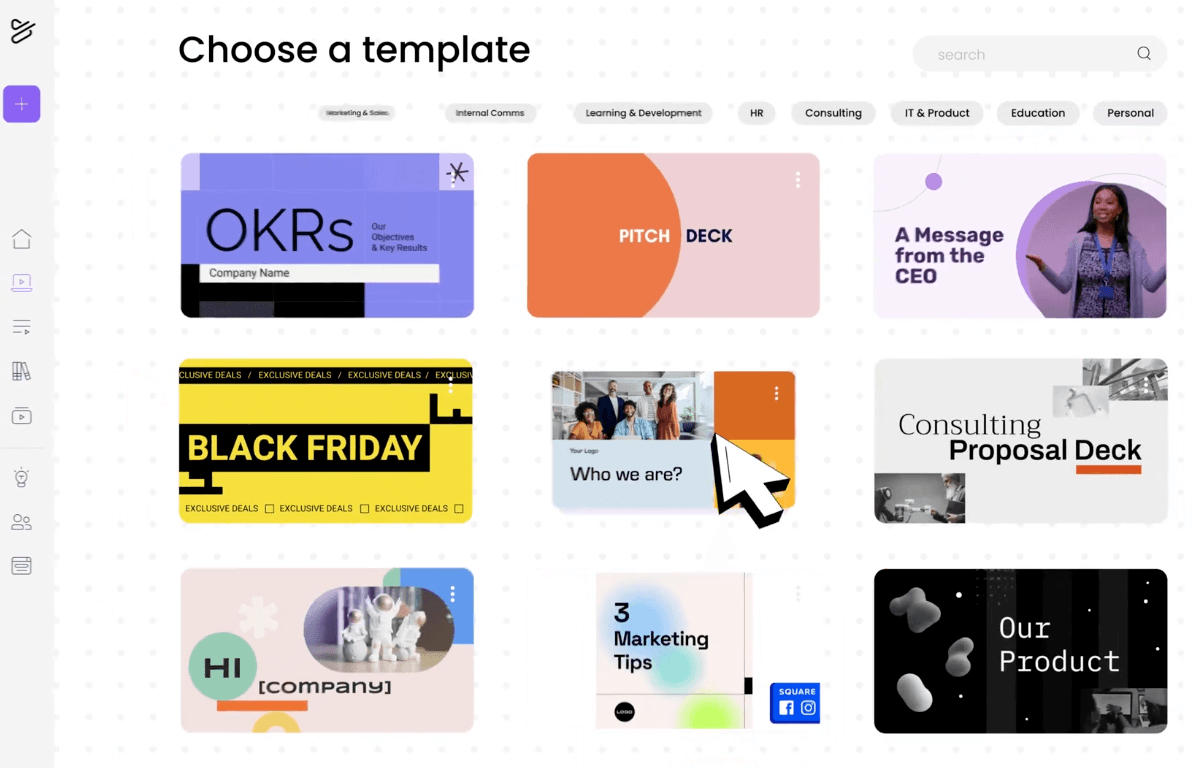
Best for: Fun, animated, template-driven videos for explainer content, onboarding, and internal comms
About Powtoon
Powtoon is a cloud-based training video creator that specializes in animated video production for learning and development teams. The platform provides drag-and-drop functionality and pre-built templates to help organizations create training videos quickly and efficiently.
Key Features:
- Drag-and-drop interface with customizable templates for rapid video creation
- Doc to video conversion (PPT, PDF, and Google Slides)
- AI text-to-video and -image conversion
- AI avatar generator with 100s of industry-specific templates
- AI-driven script generation, text-to-speech, captions, and translations
| What people like | What people don’t |
| “I really like the structure and variety of features available on Powtoon. The templates are incredibly helpful when I need to create quick videos, saving a lot of time without compromising quality.” — Anna S. “Easy to access and to create animated videos with many materials available.” — Bruno M. | “Lack of flexibility for animations and transitions. You cannot adjust the speed or time for any animations, which makes the video seem too rushed and doesn’t really fit the audio.” — Ann C. “It lacks support in video files and has limited animations.” — Marium U. |
How to create training videos that engage learners
You don’t need a Hollywood budget to create videos that stick, just a clear plan. Before you hit record, map out your video with a simple storyboard to ensure every scene has a purpose. This small step helps you stay on track and deliver a focused message that respects your learner’s time from the very beginning.
What your learners see and hear matters just as much as what you say. Use high-resolution screen recordings and zoom in on key details to guide their attention, because fuzzy visuals or muffled audio can undermine your credibility instantly. A clear voice-over recorded in a quiet space transforms a simple demonstration into a professional, easy-to-follow experience.
Keep your videos short and to the point. Aim for a single, powerful idea in under seven minutes. If a topic is complex, break it into a series of bite-sized modules that are easier for your team to digest and revisit. Ruthless editing is your best friend; cutting out every unnecessary pause and tangent shows you value your audience’s attention.
Related reading: Top 7 corporate training video examples that drive results
What features to look for when making a training video
Staring at a sea of video software options? It’s easy to get lost in flashy features that don’t actually help you. The secret is to focus on what will make your job easier and your training more effective for your learners, ensuring your investment pays off.
Screen recording and editing
You need more than just a simple screen grab. Look for the control to record specific windows or regions while capturing both your voice and system audio at once. This is how you create crystal-clear software tutorials that leave no room for confusion.
Polished editing shouldn’t require a film degree. Prioritize tools that let you easily trim clips, add smooth transitions, and use callouts to highlight key steps. These simple touches make your content look professional and keep your learners focused.
AI or automation capabilities
Imagine cutting your production time in half without sacrificing quality. AI-powered tools can handle the tedious work for you, automatically generating accurate captions, transcripts, and even suggesting edits to improve your video’s flow.
You can also reach your global teams more easily than ever. Modern text-to-speech provides natural-sounding narration, while auto-translation creates multiple language versions with a single click, saving you significant time and budget.
LMS integration and analytics
A great video is useless if it creates a reporting nightmare in your LMS. Ensure your software is SCORM compliant so it automatically tracks completions and scores. This frees you from the manual, time-consuming task of chasing down learner progress.
Go beyond simple view counts and get insights you can actually use. Analytics should show you exactly where learners get stuck or lose interest, helping you pinpoint which parts of your training need a refresh. This is how you stop guessing and start making data-driven improvements.
Ready to elevate your video training approach?
Imagine creating video training your team actually wants to watch, accessible whenever and wherever they need it. You can move beyond simple delivery to build a scalable video learning ecosystem that truly engages your people and grows right alongside your organization.
This isn’t just a theoretical upgrade. After implementing Docebo’s video training platform, KCF Technologies saved $1.5 million while dramatically improving engagement. That’s the kind of tangible impact you can achieve with the right tools.
Ready to see how a modern learning platform can redefine your video training? Explore Docebo’s capabilities and discover how to create more engaging experiences that deliver real business results.
FAQs about video training software
No, most platforms include built-in recording and editing tools that allow you to create professional content in-house. A dedicated team is typically only needed for high-stakes videos like executive communications or complex product demos.
Yes, most video training platforms integrate with LMS and HR systems using standard protocols like APIs, SCORM, and xAPI. Always confirm a platform’s specific compatibility with your existing systems before purchasing.
Platforms like Docebo offer AI-powered features for automatic subtitle generation and translation into multiple languages. For technical or culturally sensitive content, human review is recommended to ensure accuracy.